
The Turnaround Report helps you see how much time has passed between certain shop statuses.
Get started on the main Admin Page.

There is no need to preselect a client and a survey. Instead, you can simply use the QuickJump bar and look up 'turnaround'.
Once on the report admin page, you can use the filters to generate a report that will be exactly what you need.
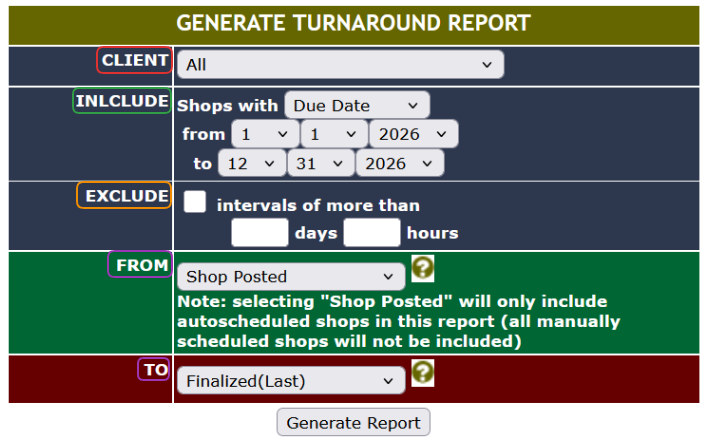
First, select a specific client, or leave the selector at All.
The include dropdown allows you do include the shops based on their Due Date, Report Date, or Shop Date.
On the other hand, you can also exclude shops in intervals of hours or days.
The From and To dropdowns allow you to select the shops based on their statuses. Options are:
- Shop Posted: Date the shop was created in the autoscheduling session (excludes manually scheduled shops from report)
- Assigned to Shopper: Date the shop was assigned (manually, autoscheduled or self-assigned)
- Shopper Submit (Last): The last date the shopper submitted this shop into Completed status
- Finalized (Last): The last date this shop was put into Finalized status
- Emailed (Last): The last date this shop was put into Emailed status
- Client Finalized (Last): The last date this shop was put into Client Finalized status
- Locked (Last): The last date this shop was put into Locked status.
Use the Generate Report button to get a report with your filters.
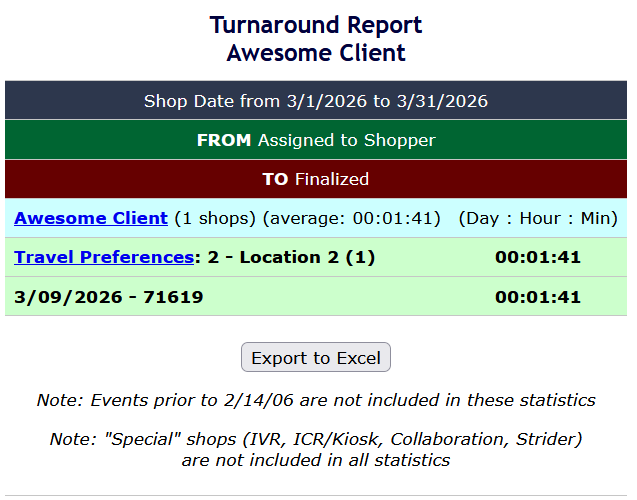
You can use the client and survey links to get additional data, as well as Export to Excel button to get an Excel version of it.
 Please keep in mind that certain types of shops are not included in the statistics!