
The Appeals Log widget displays appeals that have been done on the survey.
This widget is unlocked only if you have the Appeals functionality active.

Using the Details link on a specific appeal will open the Appeal Discussion page, allowing the manager to add their comments, and attachments if necessary.
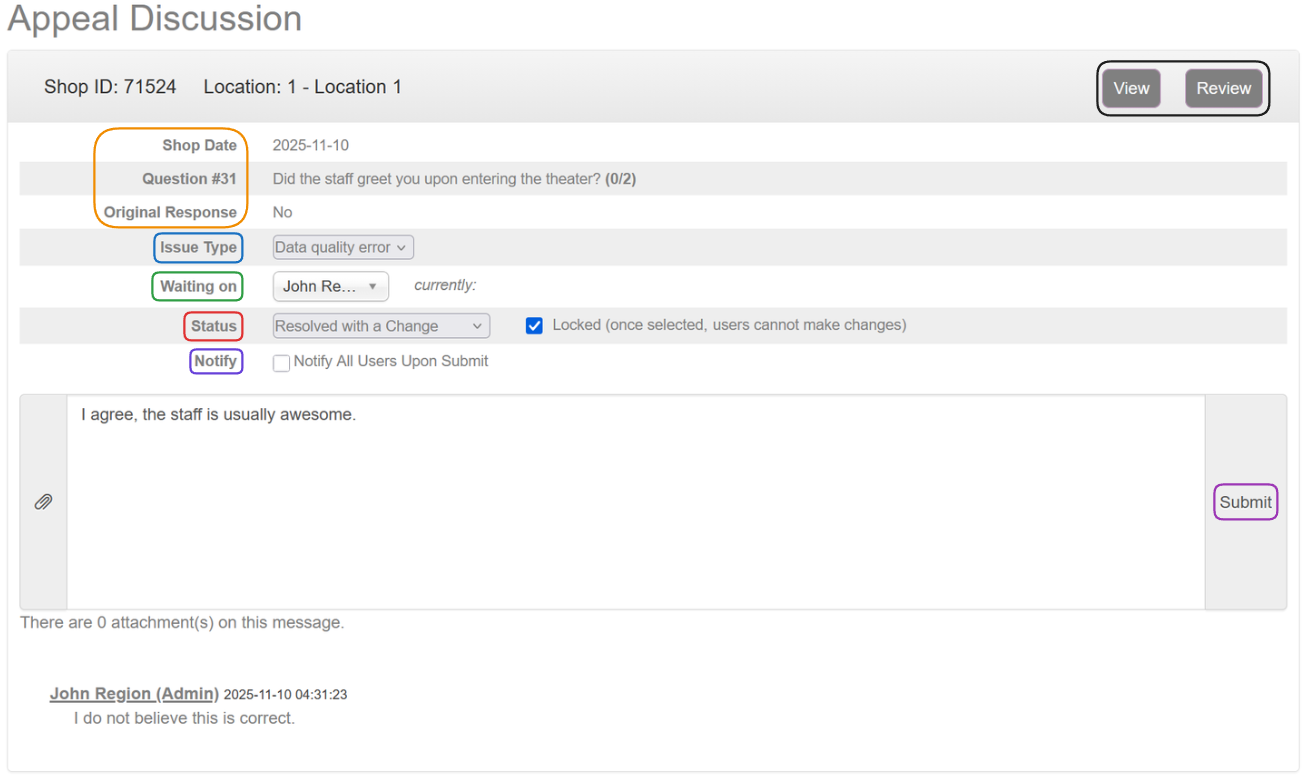
The top of the page displays shop and question data.
Issue Type should be used to set the type of the appeal, and the options are: unspecified, evaluator error, re-score, client error, data quality error, and other. This is only visible to administrators.
The Waiting on option should be used to set the manager whose turn is to deal with the appeal. The dropdown will list the managers who are in some way connected to the appeal, based on your original settings for the appeal itself.
An administrator can also change the Status of the appeal, and lock it if necessary. Status options are: new, waiting on MSP, waiting on evaluator, waiting on client, approved, resolved, resolved with a change, declined by MSP, or declined by the client.
Using the Notify checkbox will either notify all users connected to the appeals, or the system simply won't notify anyone.
Clicking the View button will open a Chameleon Shop View for that shop, and administrators can also use the Review button to open an Admin Review View.
Upon using the Submit button, any changes will be saved and the user's comment will be added to the appeal.
Widget Customisation
The Filter Appeals By Status setting allows you to filter the widget by all, resolved, or unresolved appeals.
On the same note, you can Limit Amount of Appeals shown, as well as edit which location data points to show per appeal by using the Location Info Display Options setting.
Other settings
Remember to check a different help article detailing most of other settings of this widget.